Introduction
In my daily work, I help my customers improve their Microsoft Sentinel environment by providing guidance on various security operations topics. One of these topics is SOAR (Security Orchestration, Automation and Response) where the primary purpose is to automate any recurring and predictable enrichment, response and remediation tasks that fall under the remit of the security operations team. This frees up time and resources for more in-depth investigation and hunting of advanced threats. In the context of Microsoft Sentinel, two main SOAR automation solutions are built in: automation rules and playbooks, which use Azure Logic Apps in the background.
To use Playbooks within Microsoft Sentinel, Azure Logic Apps are deployed. These Logic Apps use API connections to connect to the API in the background. I often encounter misunderstandings on this topic, as well as many orphaned API connections in my customers environments. That’s why I wrote this blog post. It will focus on Playbooks, the combination of API connections, the challenges associated with them, and how we can manage them centrally.
Azure Logic Apps and API-Connection 101
Before we delve deeper into the topic, this chapter will provide a brief overview of Azure Logic Apps. If you are already familiar with the topic, skip to the next chapter.
Azure Logic Apps are a low-code/no-code solution used to create visual workflows using a designer rather than writing traditional code. As they run serverless, there is no infrastructure to manage. Logic Apps can easily be integrated with a wide range of built-in and custom connectors, including first-party connectors such as Microsoft Sentinel and Defender for Endpoint, as well as third-party connectors such as Zendesk and VirusTotal.
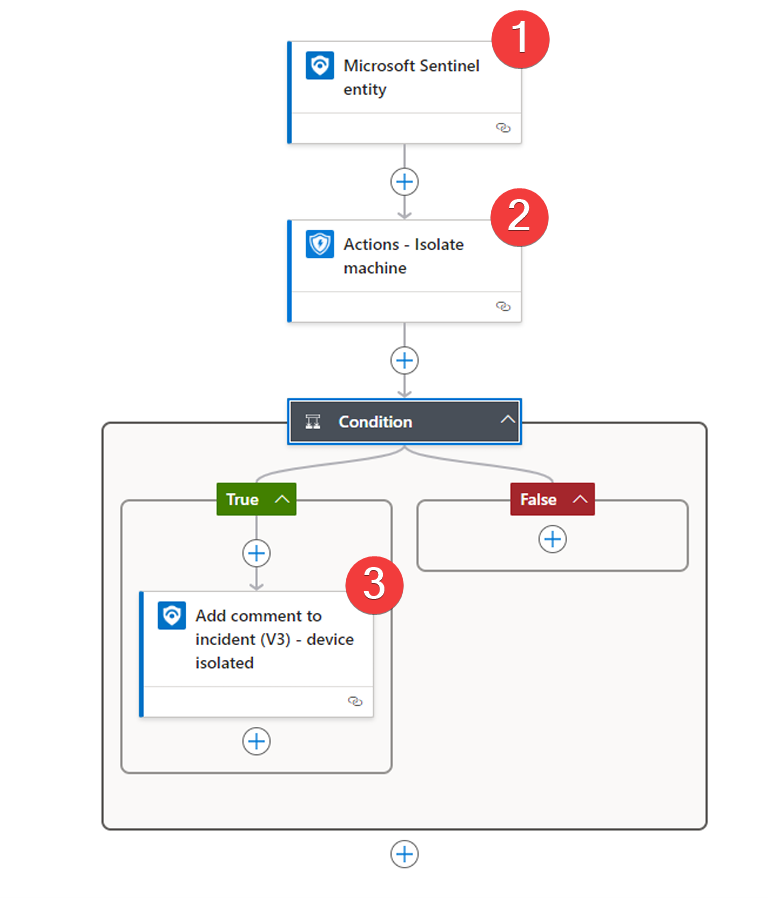
The sample Logic App uses a built-in connection to Microsoft Sentinel to retrieve information from an Microsoft Sentinel incident (Number 1), and then uses another connector to connect to Microsoft Defender for Endpoint (Number 2) and isolate the device from the information gathered in step 1. Once the device has been successfully isolated, the Microsoft Sentinel connector is used again to add a comment to the Sentinel incident (Number 3).
This example simply demonstrates how a Logic App works and what it looks like when you automate tasks with it.
Logic App Parts
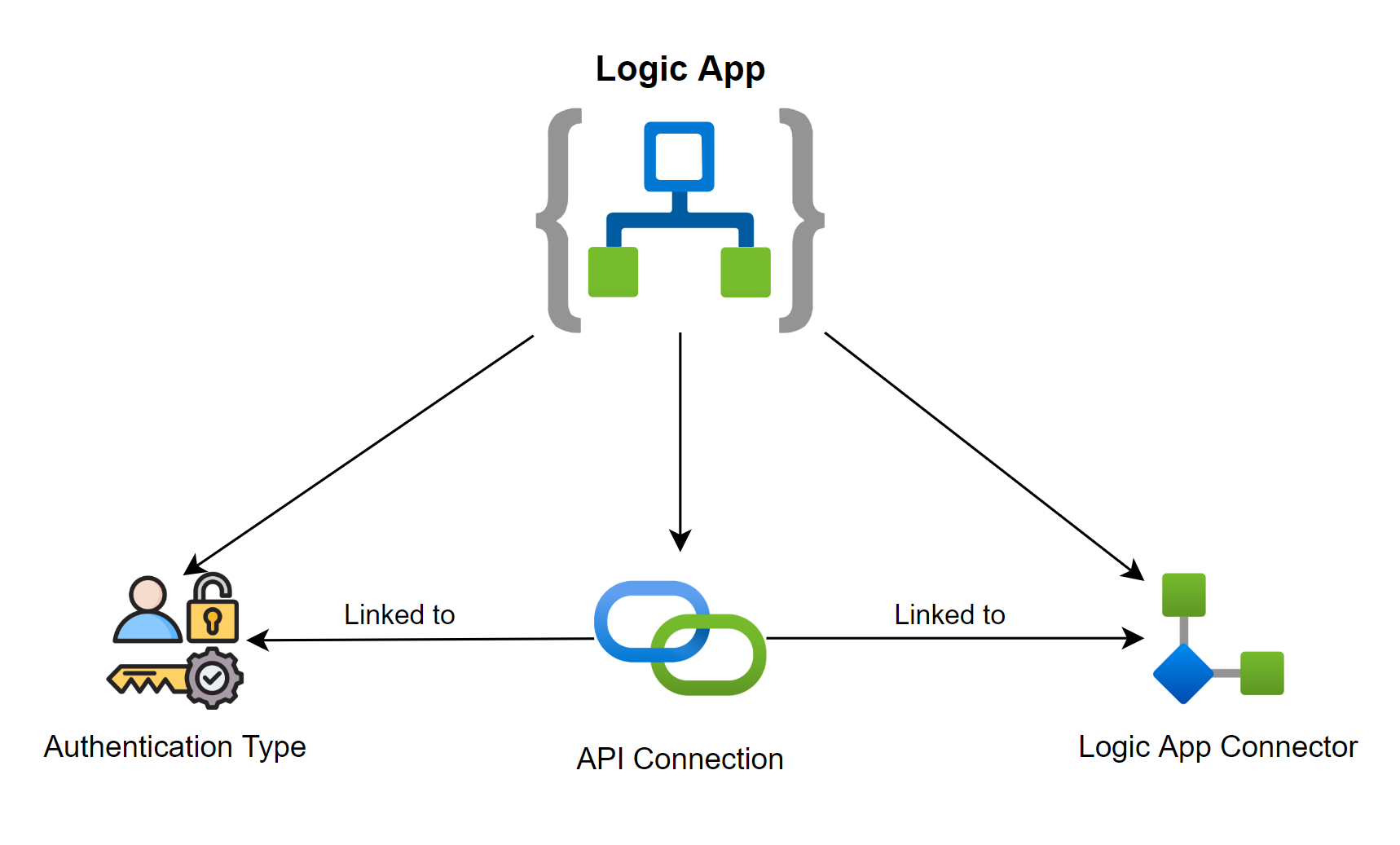
When using or deploying an Azure Logic App, multiple configurations are required. In general an Azure Logic App represents one Azure resource of the type Microsoft.Logic/workflows . No other resources are used for the deployment.
As this blog post will focus on configuring and designing automation within the Logic App and using API connections, the three most important parts of the Logic App required to create a new step will be covered (for example, isolating a device in the above step). These parts are always required to authenticate to a specific API using a Logic App step. The following three parts exist for this purpose:
Logic App Connectors
Azure Logic Apps uses connectors to integrate with various services and APIs, such as Microsoft Graph, Azure APIs and SharePoint. This eliminates the need for custom HTTP calls or manually written API requests. Each connector knows how to authenticate and communicate with its target service and securely handles the sending and receiving of data, including any required tokens or endpoints. In order to use an app connector, the step needs to know how to authenticate. For this, an API connection is required.
API Connections
For Azure Logic App connectors, an associated API connection resource stores the authentication details to securely access the target service (API). This API connection is a distinct Azure resource of the Microsoft.Web/Connections type and can be referenced by multiple Logic Apps within the same subscription and resource group. Each API connection is linked to an authentication type that determines how the connection should be set up to access the API service.
ℹ️ It is important to understand that API connections are separate Azure resources. This leads us to the main challenge of this blog post. 😉
Authentcation Type
The following authentication types can be used by a Logic App to connect to an API (e.g. Microsoft Defender for Endpoint): This can be selected in the GUI.
- OAuth-based authentication, the connector runs as the user who is currently signed in, inheriting their permissions for the target service.
- Service principal (app registration) enables the workflow to authenticate as an app registration (with Secret or Certificate)
- Managed identity has the major advantage that identities can obtain Microsoft Entra tokens without any credentials having to be managed.
Challenge
Now, let’s address the issue of the API connections. As soon as a new connection is created within a Logic App step, a new API connection is automatically generated in the background. This is a separate Azure resource in the same resource group as the Playbook (Logic App).
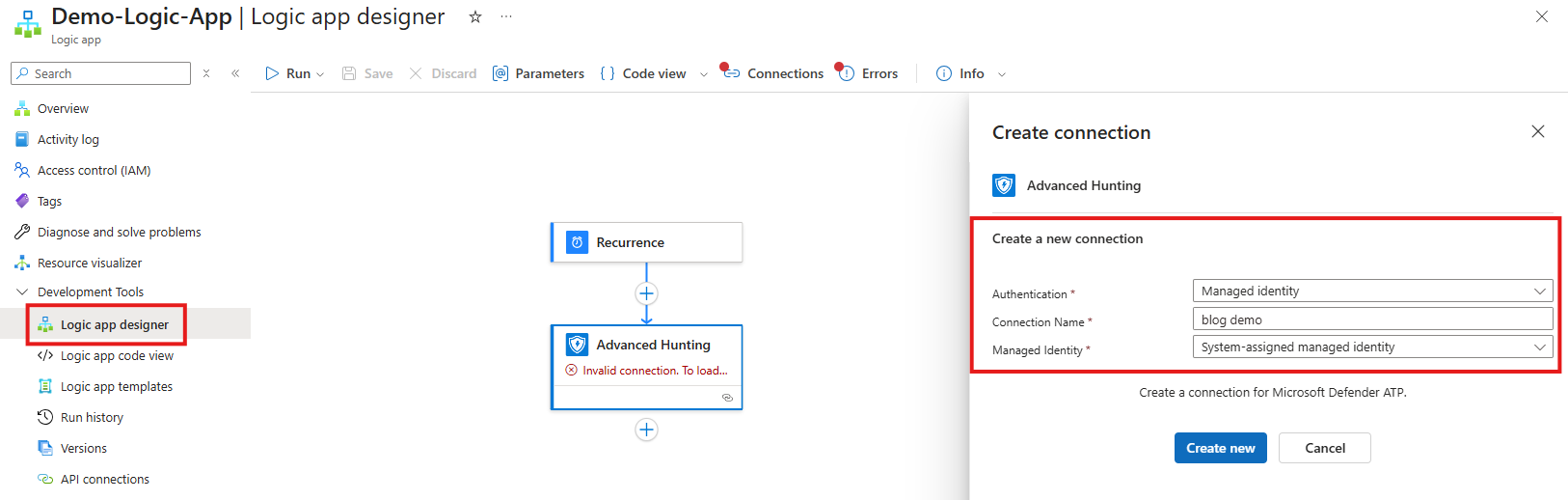
The process of creating the API connection is as follows: In this example, we use the Microsoft Defender for Endpoint Logic App connector, with Managed Identity as the authentication type. Once we have named it and clicked ‘Create’, the API connection is automatically created in the background.
The API Connection can then be found under API Connections within the Azure Portal in the same resource group as the Playbook (Logic App):
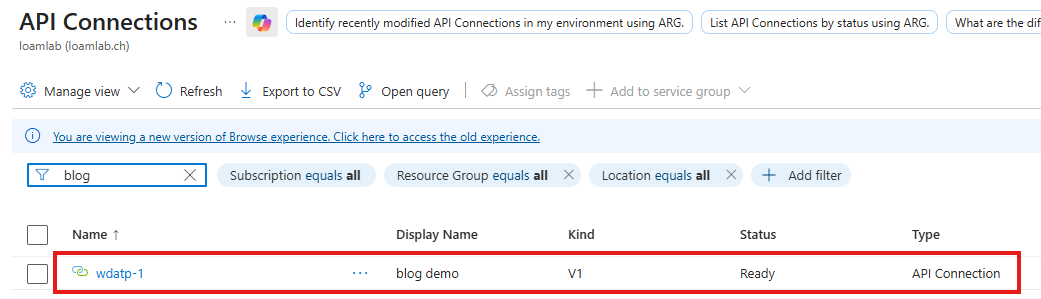
Now to the challenge(s):
- The Azure Resource Name of the API connections is automatically generated and it is not possible to change it within the GUI. That’s a big problem when a naming convention is already in place. The name that we entered previously is only the display name of the resource. If there are multiple API connections for the same resource, only the number at the end will increase.
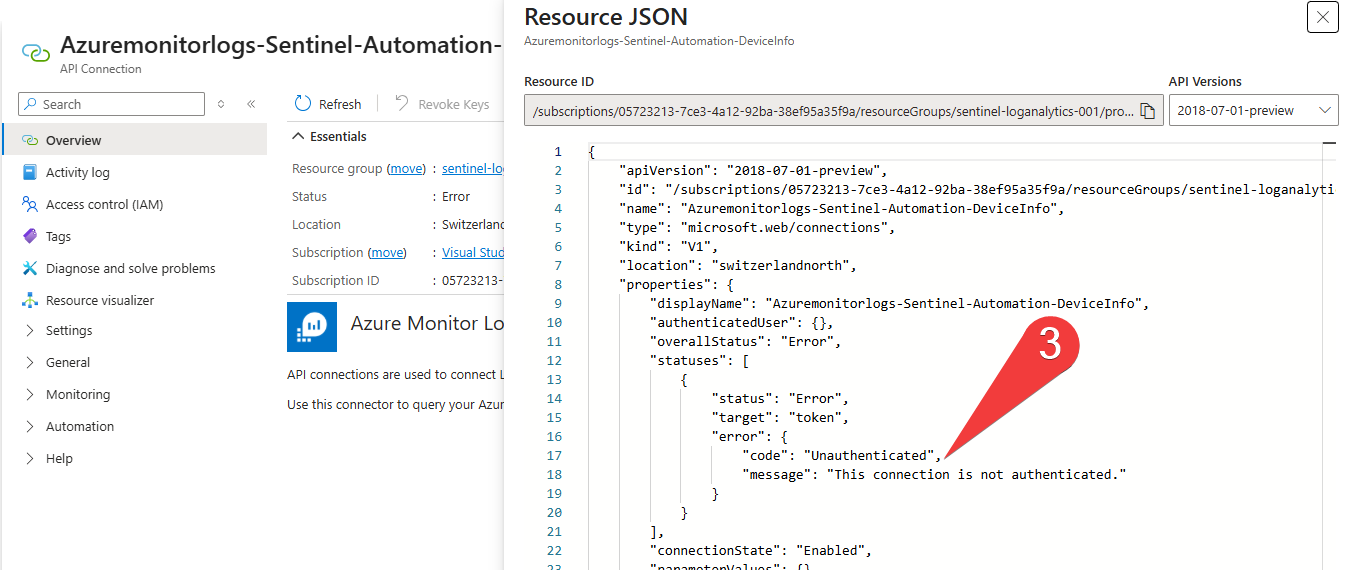
- Some of the API connections have an error status, meaning they are either no longer in use or not working. These connections may have been used for testing purposes or in other areas. However, this creates the problem of not having a clear overview of which resources are currently in use and which are not. This also leads to chaos within the Azure Resource Group.
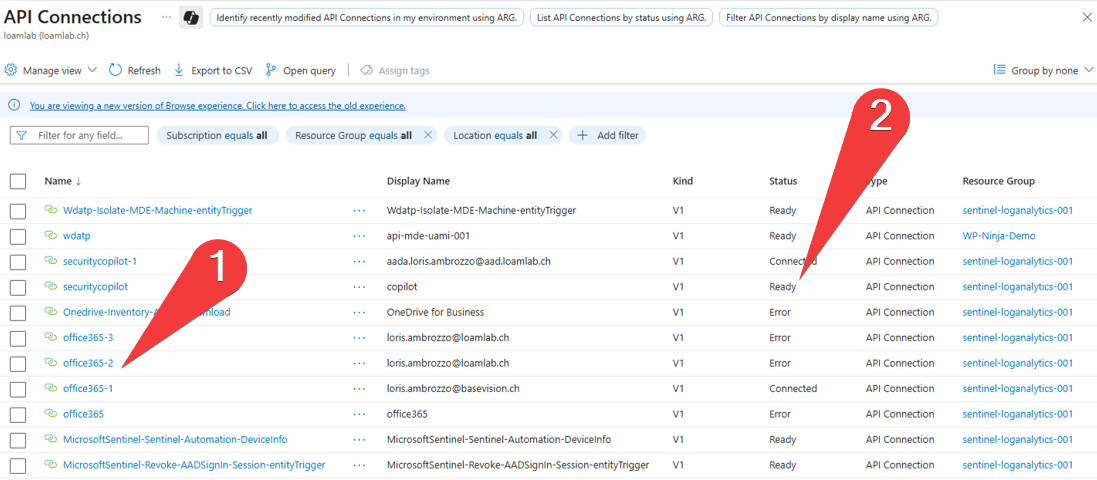
- Where possible, the recommendation is to authenticate with a Managed Identity to reduce the use of secrets or certificates. However, when creating these API connections, other options are selectable. It may not always be clear when an API connection will expire (this may happen when the app registration secret expires). This could result in some Logic Apps no longer working properly, which would impact security operation processes.
Solution
Now, whenever I work on a project with customers who already have multiple API connections deployed within their Microsoft Sentinel instance, I always follow the same procedure. I also wanted to share this with you, so that you can do the same in your environment and centralise and clean up your API connections.
| # | Description |
|---|---|
| 1 | Identify which APIs are used in all Logic Apps and which Logic App steps are implemented (e.g. Microsoft Defender for Endpoint or Microsoft Sentinel). |
| 2 | Create new ‘unified’ API connections that can be used by multiple Logic Apps. These connections should be created according to the naming convention. |
| 3 | Link the newly created API connections to the existing Logic Apps. |
| 4 | Train the IT team to use existing API connections instead of creating new ones, or create a new central API connection if one does not already exist. |
| 5 | Clean up orphan API connections. |
Create new ‘unified’ API connections
As I mentioned earlier, it is not possible to create API connections with custom resource names using the Azure GUI. However, this can be done with Bicep. For this, I create a separate Bicep template for each Logic App Connector and API connection. For this blog post, I will create an API connection for Microsoft Defender for Endpoint as an example.
The Bicep code below is an example for the API connection for Microsoft Defender for Endpoint.
param AzureAPIConenctionName string = 'api-mde'
param ResourceGroupLocation string = resourceGroup().location

resource WdatpConnection 'Microsoft.Web/connections@2016-06-01' = {
  name: MDEApiConnectionName
  location: resourceGroupLocation
  properties: {
    displayName: MDEApiConnectionName
    customParameterValues: {}
    parameterValueType: 'Alternative'
    api: {
      id: subscriptionResourceId('Microsoft.Web/locations/managedApis', resourceGroupLocation, 'Wdatp')
    }
  }
}
The name of the Azure Resource Name is defined using the AzureAPIConnectionName parameter. It is also important to note that each API connection is linked to the Logic App Connector. This is done with the following parameter:
id: _subscriptionResourceId("Microsoft.Web/locations/managedApis", resourceGroupLocation, "Wdatp")'.
ℹ️ If you would like to create a new API connection for another Logic App, make sure you change Wdatp to the correct resource of the Logic App connector.
If we now deploy the new centralised API Connection we see the following:
- The Azure resource name is set according to the Bicep template
- The display name is the same as the resource name to ensure consistent naming conventions across all fields
- We see the connector name wdatp, which is Microsoft Defender for Endpoint
- Authentication is via Managed Identity (the recommended way). Note: The selection of which Managed Identity will be used is configured within the Logic App step itself.
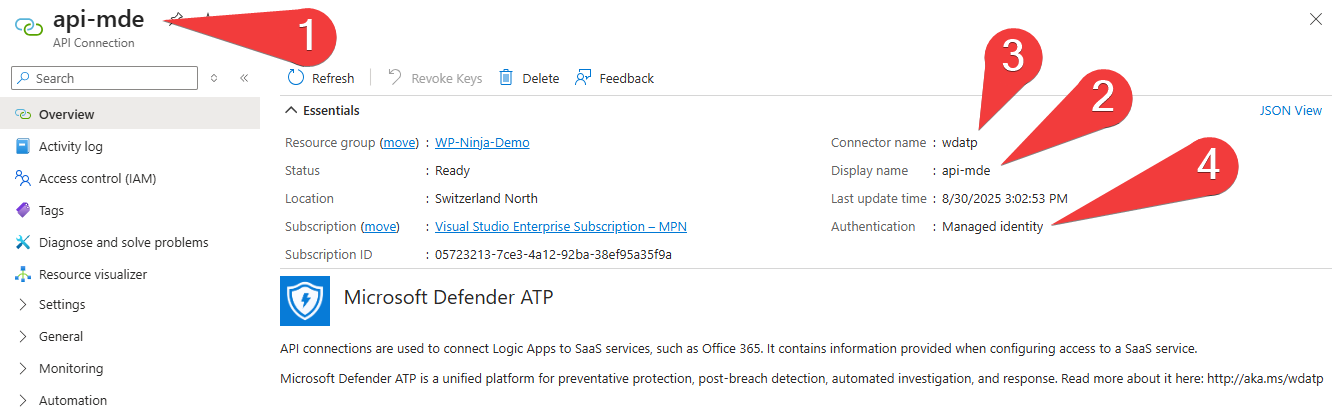
This API connection can now be used in various Logic Apps.
Link the newly created API connections to the existing Logic Apps
If we have a Logic App that includes a Defender for Endpoint step, we can select the newly created API connection within the GUI. If you deploy all Logic Apps using infrastructure as code, which is the preferred method, it’s much easier to change all Logic App steps to the new API connection. But for this purpose I will show it in the GUI:
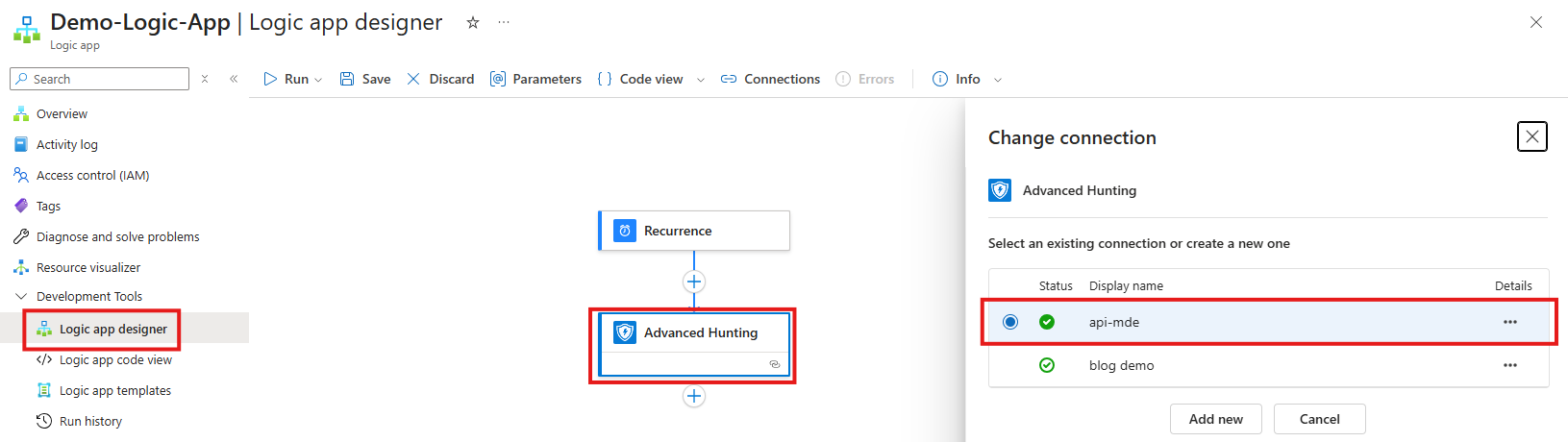
The Logic App will now use the newly created API connection. As this Logic App has a system-assigned managed identity, it will use this identity to automatically authenticate against the Microsoft Defender for Endpoint API. If multiple Managed Identities are assigned to the Logic App, you will be prompted to select one in the GUI.
Once this has been done, the same process can be repeated for all the other API connections within the environment.
Find orphan API Connections
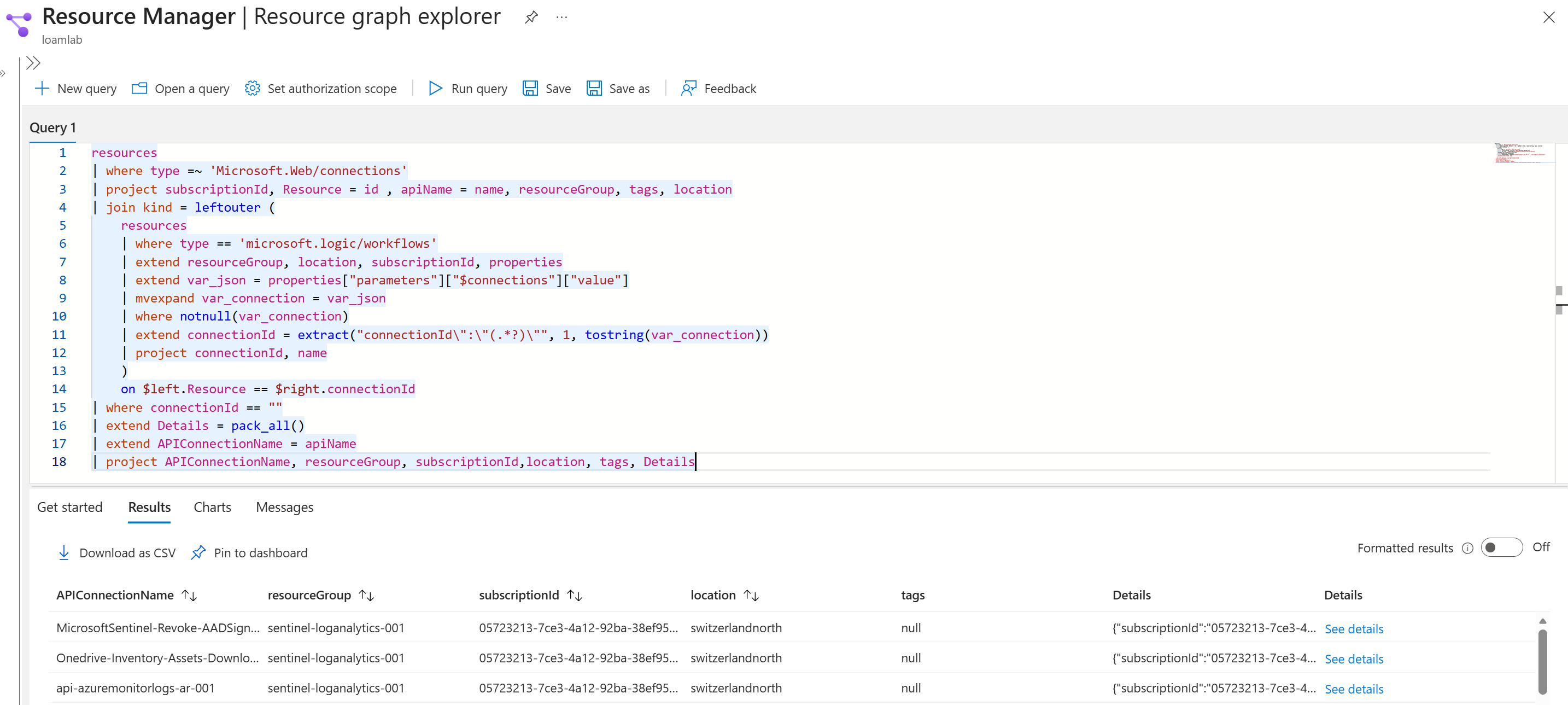
Now that we have created and implemented the new centralised API connections in our Logic Apps, the next step is to clean up the old, unused API connections. We will use the Resource Graph Explorer in Microsoft Azure to list all API connections that are not linked to any Logic App. You can use the following query for this purpose:
Make sure to check out the following GitHub report for lots of KQL queries for detecting orphan resources within Azure: Azure Orphaned Resources - Queries
resources
| where type =~ 'Microsoft.Web/connections'
| project subscriptionId, Resource = id , apiName = name, resourceGroup, tags, location
| join kind = leftouter (
    resources
    | where type == 'microsoft.logic/workflows'
    | extend resourceGroup, location, subscriptionId, properties
    | extend var_json = properties["parameters"]["$connections"]["value"]
	| mvexpand var_connection = var_json
    | where notnull(var_connection)
    | extend connectionId = extract("connectionId\":\"(.*?)\"", 1, tostring(var_connection))
    | project connectionId, name
    )
    on $left.Resource == $right.connectionId
| where connectionId == ""
| extend Details = pack_all()
| project apiName, resourceGroup, subscriptionId,location, tags, Details
The result will list the name of each orphaned API connection, along with the resource group and subscription to which it is deployed. These orphaned API connections can be removed, as they are not currently in use or linked to any Logic Apps.
After cleaning up ensure that you check all Logic Apps to confirm they are still working properly.
Conclusion
In this blog post, I shared my experiences of working with Playbooks (Logic Apps) in Microsoft Sentinel and explained how (orphan) API connections can present challenges. I also demonstrated how these challenges can be overcome by creating new, centralised API connections that adhere to the organisation’s naming conventions and can be used across multiple Logic Apps. The Azure Resource Graph can be used to identify unused orphan API connections and provide a good starting point for cleaning up connections that are no longer used.
This approach will help you to simplify and streamline all of your API connection resources within your Microsoft Sentinel resource group. This ensures you always have an overview of the resources used in your playbooks and that your Sentinel resource group is structured according to deployed resources.
If you have any input, feedback or additional information, please feel free to contact me at any time.
See you next time! Loris 👋